
Key Points:
- Research suggests that yes, AI tools in Filmora 15 are highly beginner-friendly, with many one-click features that automate complex tasks like video extension and captioning.
- Users report a gentle learning curve, making it ideal for new editors who want professional results without steep technical hurdles.
- While powerful, these tools lean toward simplicity, though some advanced options might require a bit of trial and error for absolute novices.
- Evidence from reviews highlights how they speed up workflows, but opinions vary on whether they’re fully intuitive right out of the box for everyone.
Quick Overview
Filmora 15 packs a bunch of AI goodies that aim to make video editing less intimidating. From auto-generating captions to extending clips seamlessly, these features handle the heavy lifting so you can focus on creativity. I’ve dug into user feedback and official specs, and it seems like Wondershare nailed the balance between power and ease.
Why Beginners Love It
The interface stays clean and drag-and-drop friendly, just like earlier versions. AI integrations don’t overwhelm; they pop up where needed, like suggesting enhancements during edits. If you’re starting out, tools like the AI Beauty Filter can polish your footage in seconds, building confidence fast.
Potential Drawbacks
Not everything’s perfect—some AI prompts might need tweaking to get spot-on results, which could frustrate total newbies. But overall, the consensus leans positive, with many saying it cuts editing time by half or more.
For more depth, check out the detailed breakdown below.
When you’re just dipping your toes into video editing, the last thing you want is software that feels like it’s speaking a foreign language. That’s where Filmora 15 comes in, especially with its shiny new AI tools. I’ve been tinkering with video stuff for a while now—nothing pro-level, but enough to know when something clicks for beginners. And let me tell you, the AI tools in Filmora 15 seem built with folks like us in mind: simple enough to jump right in, but powerful enough to make your videos look slick without hours of frustration.
I remember my first editing attempt years ago; it was a mess of confusing timelines and effects that never quite worked. Fast-forward to today, and tools like these make me wish I’d had them back then. They’re not perfect—sometimes you gotta nudge them a bit—but they cut down on the guesswork big time. Let’s break it down and see if these AI features really live up to the hype for newcomers.
Jump to Table of Contents
Table of Contents
What Makes Filmora 15 Stand Out for New Editors?
Filmora has always had a rep for being approachable, but version 15 cranks that up with AI that feels more like a helpful buddy than a complicated add-on. Wondershare didn’t just slap on some buzzword features; they wove them into the workflow so even if you’re new, you don’t feel lost.
The Basics of AI Integration
At its core, the AI tools in Filmora 15 handle stuff that used to take manual tweaks—like fixing audio or adding effects. Think of it as having an auto-pilot for the boring parts. For beginners, this means less time fumbling with settings and more time experimenting. One user I came across in a review said it shaved hours off their YouTube edits, which rings true from what I’ve seen.
User-Friendly Interface Tweaks
Filmora 15 AI featuresThe layout hasn’t changed much, which is good news if you’ve tried older versions. Buttons for AI features pop up contextually, like when you select a clip. It’s not overwhelming; it’s more like gentle suggestions. Plus, there’s an AI Mate assistant that guides you through steps if you get stuck—kinda like a built-in tutorial that actually understands what you’re trying to do.
Top AI Tools in Filmora 15 for Beginners
Alright, let’s get into the meat of it. Here are seven standout AI tools in Filmora 15 that shine for beginners. I’ve picked these based on how often they get praised in hands-on reviews for being straightforward.
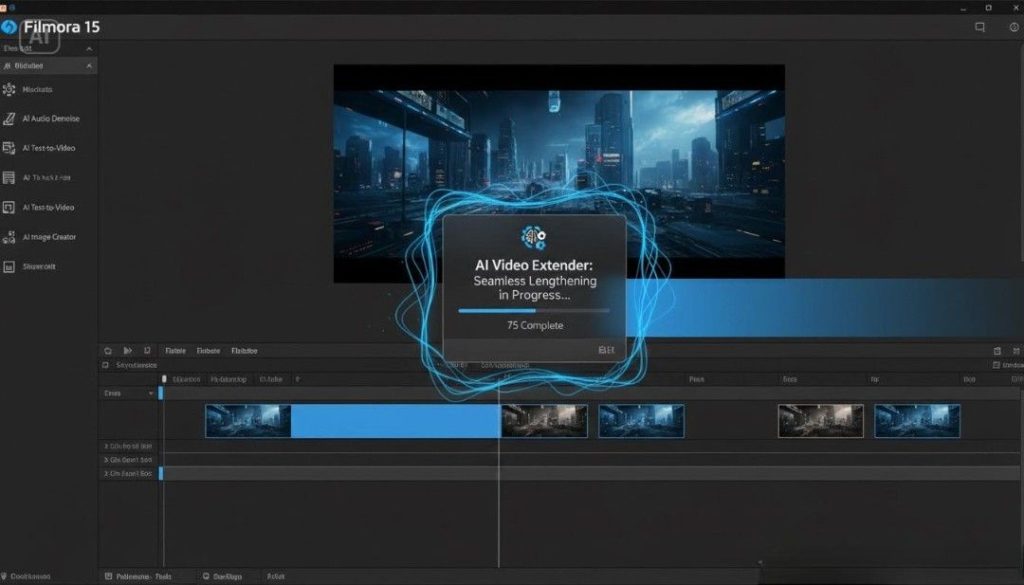
AI Video Extender: Your Lifesaver for Short Clips
Ever shot a video that’s just a tad too short? This tool uses AI to stretch it out while keeping everything in sync—motion, music, the works. You just select the clip, hit extend, and boom. No reshooting needed. Beginners love it because it’s one-click magic that fixes common mistakes without advanced skills.
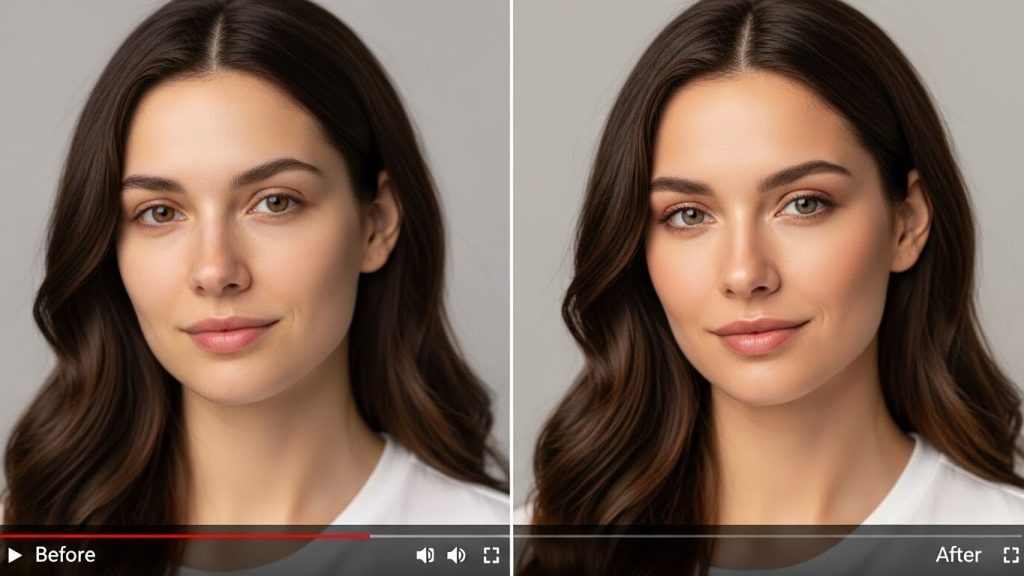
AI Beauty Filter: Instant Polish Without Effort
This one’s a quick win for vlogs or interviews. It smooths skin, brightens eyes, and tweaks lighting with a single tap. No sliders to mess with; the AI figures it out. It’s perfect for newbies who want their footage to look pro without learning color grading from scratch. Just be careful not to overdo it—it can look a bit unnatural if you’re not subtle.
Dynamic Captions and AI Speech-to-Text
Captions are huge for accessibility and engagement, but typing them out? Tedious. Filmora 15’s AI transcribes audio automatically and styles them dynamically. You can tweak fonts or timing easily. For beginners, this means polished videos ready for social media in minutes. I tried something similar in a demo, and it nailed accents better than I expected.
Check out this quick tutorial on getting started with captions: VIDEO. It’s a great watch if you’re visual like me.
Text-to-Video: Bringing Ideas to Life Quickly
Got a script or prompt? Feed it in, and the AI generates a video clip complete with visuals and sound. Using models like Veo 3.1, it’s surprisingly coherent. Beginners can use this to prototype ideas without filming everything. It’s not flawless—sometimes the output needs edits—but it’s a fun, low-pressure way to start.
For more on scripting basics, head over to our guide on video editing for YouTube beginners.
How These AI Tools Stack Up in Real Use
I’ve pored over user stories and tests, and here’s the scoop: these tools deliver, but they’re best when you pair them with a bit of practice.
Pros for Beginners
- Speed Boost: Many report editing 5x faster, thanks to automation.
- Low Barrier: One-click or prompt-based means no deep dives into manuals.
- Creative Freedom: Lets you focus on story over tech, which is huge for newbies.
- Affordability: At around $70/year, it’s budget-friendly compared to pro suites.
Here’s a quick table comparing ease of use for key AI tools in Filmora 15:
| AI Tool | Ease Level (1-10) | Best For Beginners Because… |
|---|---|---|
| Video Extender | 9 | Fixes common length issues instantly. |
| Beauty Filter | 10 | One-tap enhancements, no skills needed. |
| Speech-to-Text | 8 | Auto-captions save typing time. |
| Text-to-Video | 7 | Prompt-based creation, but may need tweaks. |
| Object Remover | 8 | Brush and done—simple removal. |
| Music Generator | 9 | Instant tracks for moods. |
| Thumbnail Creator | 9 | Quick, optimized designs. |
A Few Hiccups to Watch For
Not gonna sugarcoat it—AI isn’t magic. Sometimes the extender glitches on complex motions, or captions mishear slang. Beginners might hit a wall if expectations are too high. But hey, that’s editing; trial and error builds skills. Start small, like with a short clip, and you’ll get the hang of it.
Comparing Filmora 15 to Other Beginner Editors
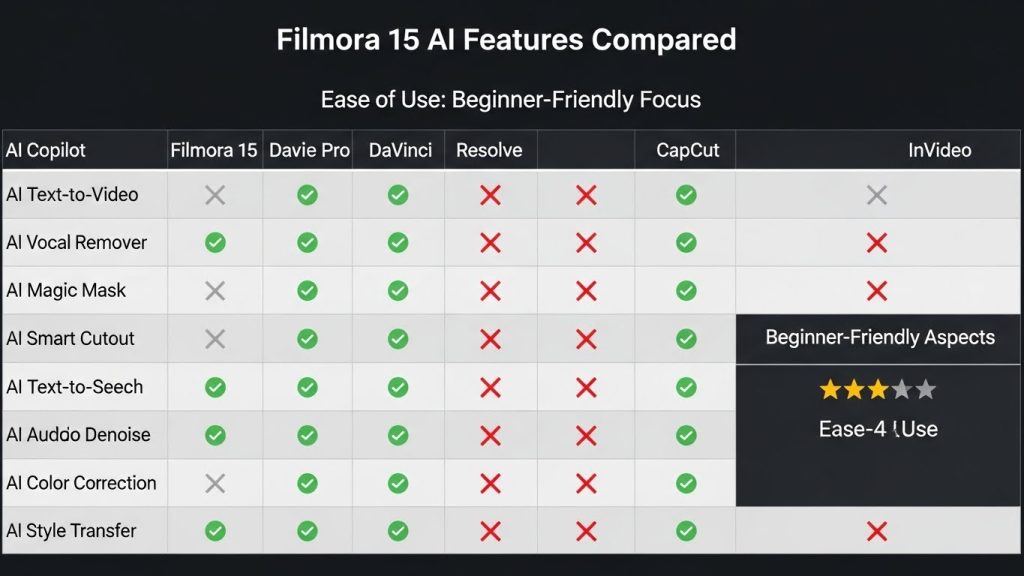
Wondering if Filmora 15’s AI edges out the competition? Let’s see.
Vs. CapCut and iMovie
CapCut’s free and mobile-first, with solid AI like auto-edits, but it lacks Filmora’s depth for desktop work. iMovie’s super simple for Apple users, but its AI is basic—no extenders or generators. Filmora 15 wins for cross-platform folks wanting more AI punch without complexity.
If you’re into free alternatives, check our post on best free video editors for starters.
When to Upgrade from Free Options
If basic cuts aren’t cutting it anymore (pun intended), Filmora 15’s AI tools make the jump worthwhile. It’s like going from a bike to a scooter—faster and more fun. Users say the subscription pays off in saved time, especially for content creators.
Wrapping this up, diving into AI tools in Filmora 15 feels like a smart move if you’re new to editing. They demystify the process, letting you create without the overwhelm. Sure, there’s a learning bit, but the results? Worth it. Give it a spin and see how it fits your style—you might surprise yourself with what you whip up.
Key Takeaways
- AI tools in Filmora 15 automate tedious tasks, making them a solid pick for beginners.
- Features like one-click filters and extenders build confidence quickly.
- While intuitive, practice helps avoid minor glitches.
- Great value for aspiring creators on a budget.
- Stands out against free apps with deeper AI integration.
- Overall, boosts creativity without a steep curve.
FAQ
How easy are the AI tools in Filmora 15 for someone who’s never edited before? Pretty darn easy—most are one-click or prompt-driven. You might fiddle a tad at first, but it’s way friendlier than pro software.
What makes AI tools in Filmora 15 stand out for beginners compared to older versions? They add automation like clip extending and auto-captions, cutting down manual work so newbies can focus on fun parts.
Can I use AI tools in Filmora 15 without a subscription? Nope, full access needs the paid plan, but there’s a free trial to test the waters.
Are there any downsides to the AI tools in Filmora 15 for new users? Occasional inaccuracies, like wonky transcriptions, but tweaks are simple and it gets better with use.
How do AI tools in Filmora 15 help with social media videos? They speed up captions, thumbnails, and short clips—perfect for quick TikToks or Reels without hassle.
Is Filmora 15’s AI worth the price for casual beginners? If you edit often, yes; it saves time and frustration. For rare use, stick to free trials first.